
Choosing the right vector workflow is rarely as simple as finding an AI image generator. App developers, designers, and product teams may need editable SVG output, raster-to-vector conversion, app-store screenshots, diagram layouts, or a broader visual workspace that can handle several formats. I compared 9 tools against those real-world needs, from native open-source creative software to lightweight browser utilities and AI-assisted design studios. This guide covers the top ai app development tools for vector editing while also calling out where a tool is an adjacent visual solution rather than a traditional vector editor.
Start here
The fastest way to narrow this field is to decide what "vector editing" means in your project. If you want a general-purpose creative foundation, ArtCraft is the strongest first stop. If you need actual SVG conversion or prompt-generated vector artwork, SVG Converter is the most direct fit. AppLaunchFlow is better for app-store production than for drawing paths, while TopoAI belongs on a shortlist for editable technical diagrams rather than logos or illustrations.
Best overall match: ArtCraft for a broad, native creative workspace with local vector workflows.
Best direct SVG utility: SVG Converter for converting raster images into SVG, PDF, EPS, or DXF.
Best for app-store launch work: AppLaunchFlow for screenshots, ASO copy, and localization.
Best for prompt-led visual production: Collart AI for combining AI photo, video, and canvas workflows.
Best technical diagram alternative: TopoAI for editable network, cloud, and security topologies.
The important caveat is that this is a mixed field. Several tools generate or transform visual assets rather than offering a full node-and-path editor. That makes the comparison more useful for app teams, but it also means you should test the exported file-not just the preview-before choosing a subscription.
Segment comparison
| Segment | Best fit | Strongest option | What to verify |
|---|---|---|---|
| Native creative suite | Designers who need multiple local formats | ArtCraft | Which applications are production-ready |
| SVG conversion and generation | Teams turning raster references into editable vectors | SVG Converter | Path quality on complex artwork |
| App-store asset production | Indie developers preparing a launch | AppLaunchFlow | Export access and language limits |
| AI visual canvas | Creators producing images and video together | Collart AI | Credit usage and commercial rights |
| Technical diagramming | Network and infrastructure teams | TopoAI | Accuracy, privacy, and engineering review |
This segmentation matters because a tool can score well while solving a different part of the production chain. A vector conversion service may be better for an existing logo, while a native creative suite is more appropriate when you need to redraw, arrange, and export several assets repeatedly.
Shortlist paths
| Your priority | Start with | Why |
|---|---|---|
| Build or edit varied creative assets locally | ArtCraft | Seven native creative applications cover vector, image, video, PDF, and layout work. |
| Turn PNG or JPG references into vectors | SVG Converter | Supports raster-to-vector conversion and several vector export formats. |
| Ship polished mobile-store listings quickly | AppLaunchFlow | Automates screenshots, ASO copy, and localization without requiring Figma. |
| Produce social or campaign visuals from prompts | Collart AI | Combines AI image generation, editing, video, and an AI Canvas. |
| Draft editable infrastructure diagrams | TopoAI | Converts requirements and images into editable topology diagrams. |
A practical buying sequence is to test the most specific tool first. If the requirement is "convert this image to an editable SVG," do not begin with a general image generator. If the requirement is "prepare 20 localized screenshots for an app launch," a vector editor alone will not solve the operational work.
Ranking snapshot
| Rank | Tool | Score | Best for | Starting price |
|---|---|---|---|---|
| #1 | ArtCraft | 93/100 | Graphic designers | Free and open source |
| #2 | Collart AI | 91/100 | Content creators | Free; paid from $5.83/mo |
| #3 | AI Photo Editor | 91/100 | Graphic designers | From $7.90/mo |
| #4 | kavel ai | 91/100 | Content creators | Free credits; paid from $19.90 |
| #5 | AppLaunchFlow | 91/100 | Indie developers | Free; paid from €9/mo |
| Rank | Tool | Score | Best for | Starting price |
|---|---|---|---|---|
| #6 | TopoAI | 89/100 | Network engineers | Free plan available |
| #7 | SVG Converter | 88/100 | Graphic designers | Check vendor pricing |
| #8 | Image 2.5 | 88/100 | Graphic designers | From $16.58/mo |
| #9 | NovaFlick AI | 87/100 | Busy moms | Check vendor pricing |
How we grouped and ranked the list
The ranking rewards tools that can contribute to a real app or design workflow, not simply produce attractive previews. We looked at how directly each product handles editable visual work, how much control it offers over output, whether it supports useful file formats or production steps, and how clearly its free access and starting price are presented.
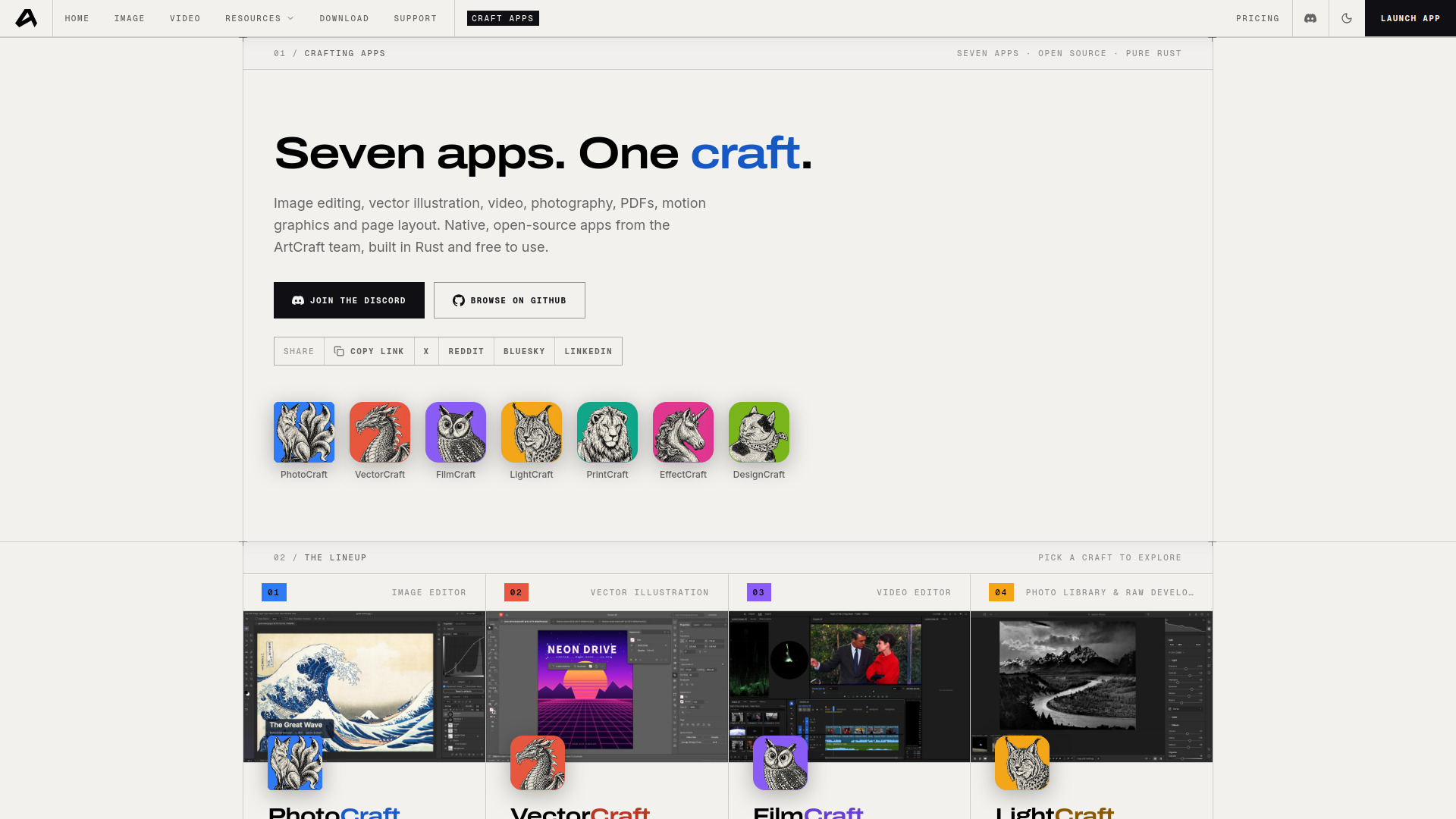
The score also reflects audience fit. ArtCraft ranks first because its seven native applications cover local image, vector, video, PDF, motion graphics, and page-layout workflows. SVG Converter ranks below the broader creative suites but is more directly aligned with one common vector task: converting raster files and generating editable SVG artwork. AppLaunchFlow ranks highly because app development includes launch assets and localization, even though it is not a general-purpose vector drawing application.
AI image tools occupy the middle of the list because they are useful for references, campaign graphics, and visual exploration, but their output still needs inspection. Credits, generation speed, commercial-use terms, and the reliability of text or fine details can materially change the value of a plan. TopoAI is judged in its own segment: its diagrams are editable and useful, but engineering review remains essential.
Ranked field notes
1. ArtCraft

- Graphic designers
- Open-source creative apps; AI generation from $8/month
- Starts at Free and Open Source: Free
- Usage signal: 115.0K
Why it matters
ArtCraft is the closest match to a serious all-purpose creative foundation in this group. Its seven native open-source applications are built in pure Rust rather than Electron or web-view wrappers, and the workflow spans local image, vector, video, photo, PDF, motion graphics, and page-layout work. That breadth matters for app teams that need more than one isolated SVG conversion: icons, promotional images, PDF assets, and layout work can live in the same broader desktop ecosystem. The AI image and video generation tools add another layer, although the generation subscription is separate from the free creative applications.
Best for
Graphic designers who want native desktop performance and open-source creative applications.
Small teams working across vector, image, PDF, motion, and page-layout assets.
Users who prefer local, automation-ready workflows over a browser-only editor.
Limitations
Several applications are still in development or early alpha.
AI generation is a separate paid layer from the free creative apps.
Buyers should confirm which specific application is mature enough for their production workflow.
Shortlist signal: Choose ArtCraft first when you want a broad, native creative workspace rather than a single-purpose vector utility.
2. Collart AI

- Content creators
- 30 free credits
- Starts at Free: $0.00
- Usage signal: 201.5K
Why it matters
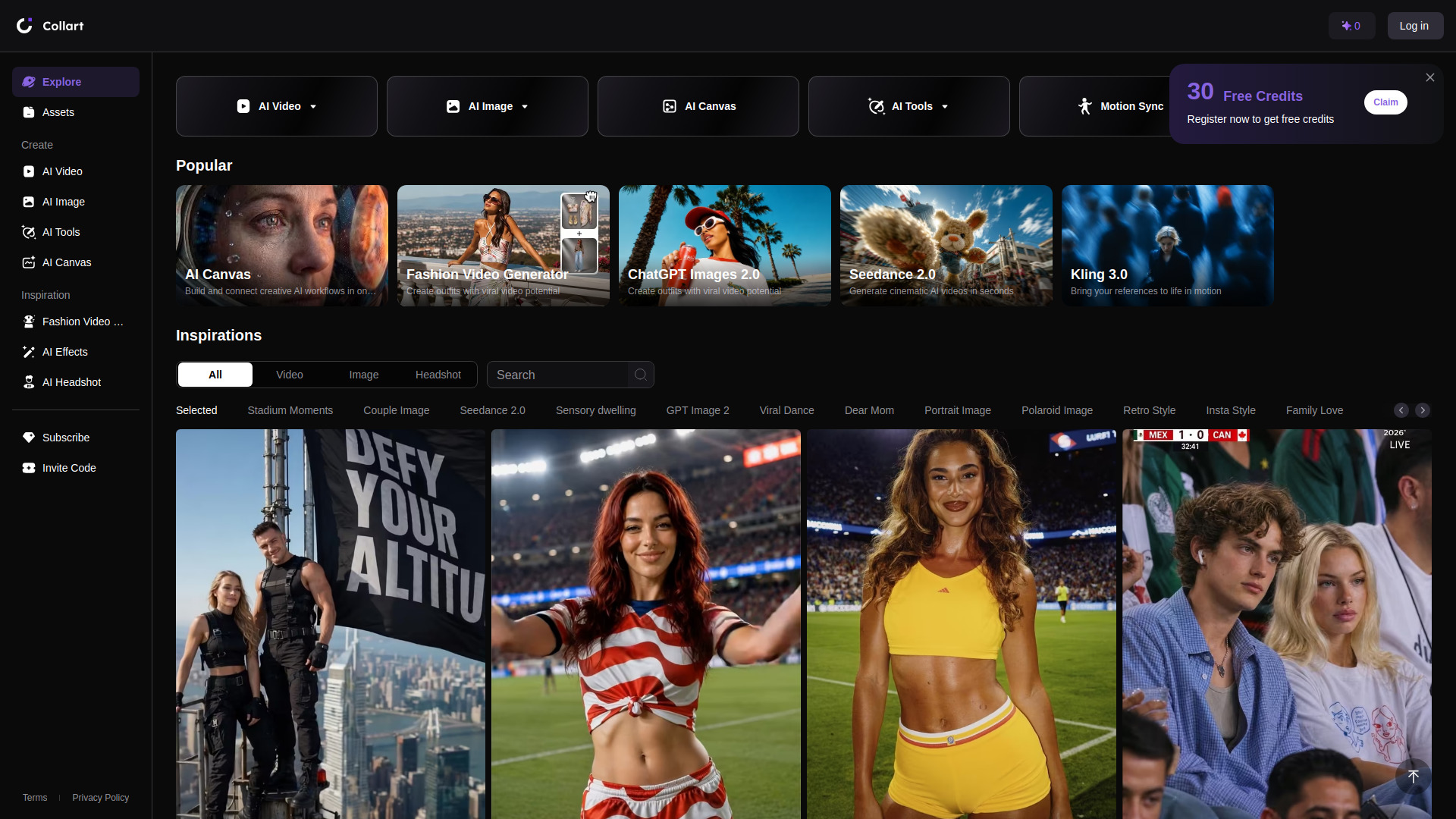
Collart AI takes a broader visual-studio approach instead of pretending that every app team needs a traditional vector editor. Its AI photo generation and editing tools sit alongside text-, image-, and reference-driven video generation, while AI Canvas provides a place to assemble creative workflows. That makes it useful for product concepts, campaign assets, social graphics, and visual exploration around an app. It is not the tool I would choose for painstaking path cleanup, but it is a compelling way to move from an idea to a family of related visuals.
Best for
Content creators making both still images and video from a shared workflow.
App teams exploring campaign directions before committing to final artwork.
Users who want to try AI visual production with 30 free credits.
Limitations
Free-plan content is not for commercial use.
Credits are required for generation and advanced usage.
It is a broader AI canvas, not a dedicated node-and-path vector editor.
Shortlist signal: Add Collart AI when your vector-adjacent work includes campaign images, references, and video-not just SVG cleanup.
3. AI Photo Editor
- Graphic designers
- No sign-up; prompt-based editing and restoration
- Starts at Basic: $7.90/month
- Usage signal: 61.7K
Why it matters
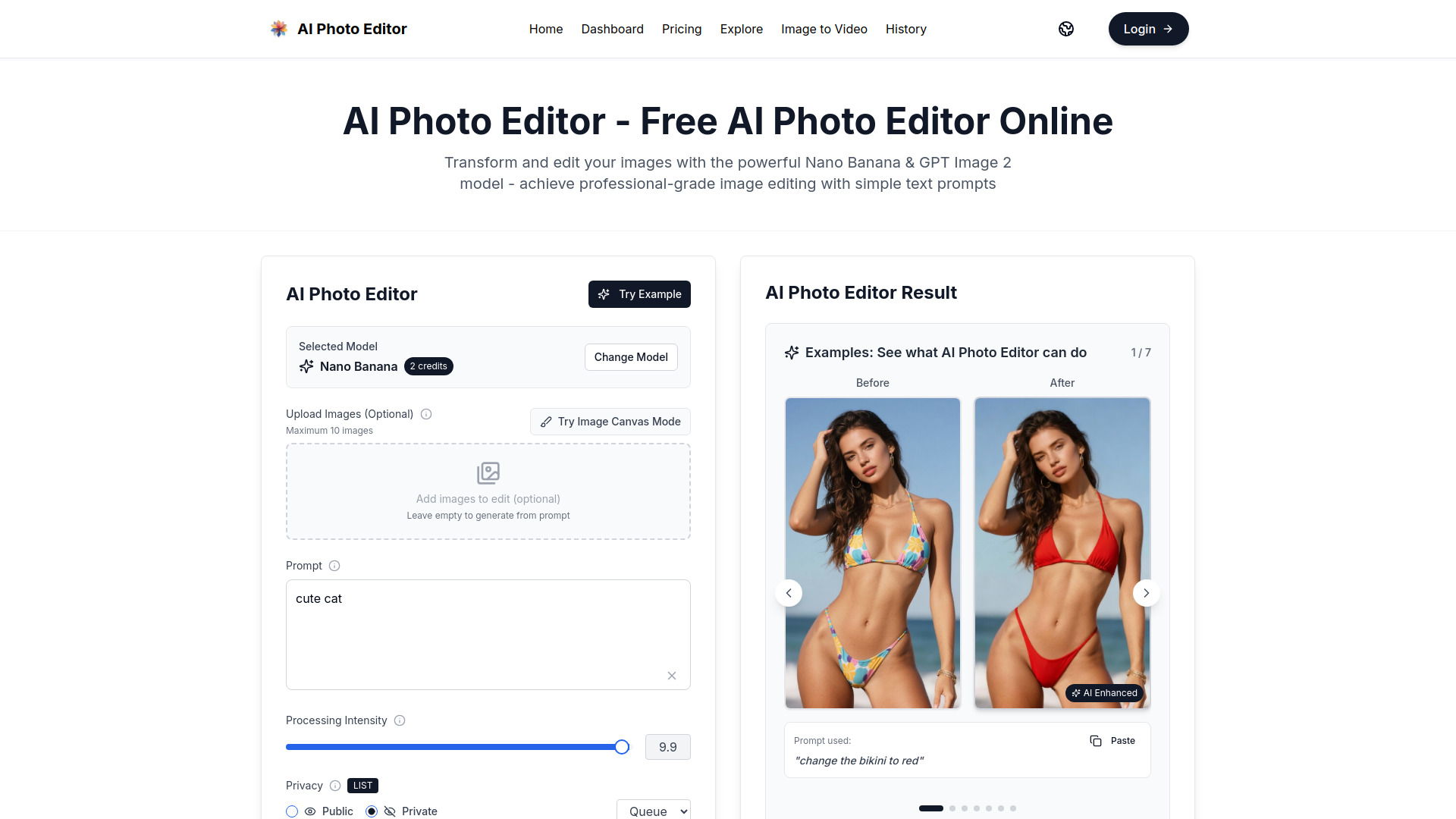
The appeal here is speed. AI Photo Editor lets users describe changes in natural language instead of building a complex stack of layers and masks. Its feature set covers restoration, colorization, style transfer, object or appearance changes, face completion, and consistent character editing. Those capabilities are useful when an app team needs to repair a source image, create a visual variation, or prepare a reference before vectorizing it. The workflow is more about intelligent image manipulation than directly editing vector paths, so it belongs on a practical shortlist for the preparation stage.
Best for
Designers who need quick prompt-based image corrections and variations.
Teams preparing raster references for later vector or layout work.
Users who want to start without an account or credit card.
Limitations
Image generation consumes credits.
The free-access quota is not clearly specified.
It does not replace a dedicated SVG editor for precise path-level changes.
Shortlist signal: Pick AI Photo Editor when source-image cleanup and controlled visual variation come before vector conversion.
4. kavel ai
- Content creators
- 10 free credits; some tools need no sign-up
- Starts at Free credits: Free
- Usage signal: 28.7K
Why it matters
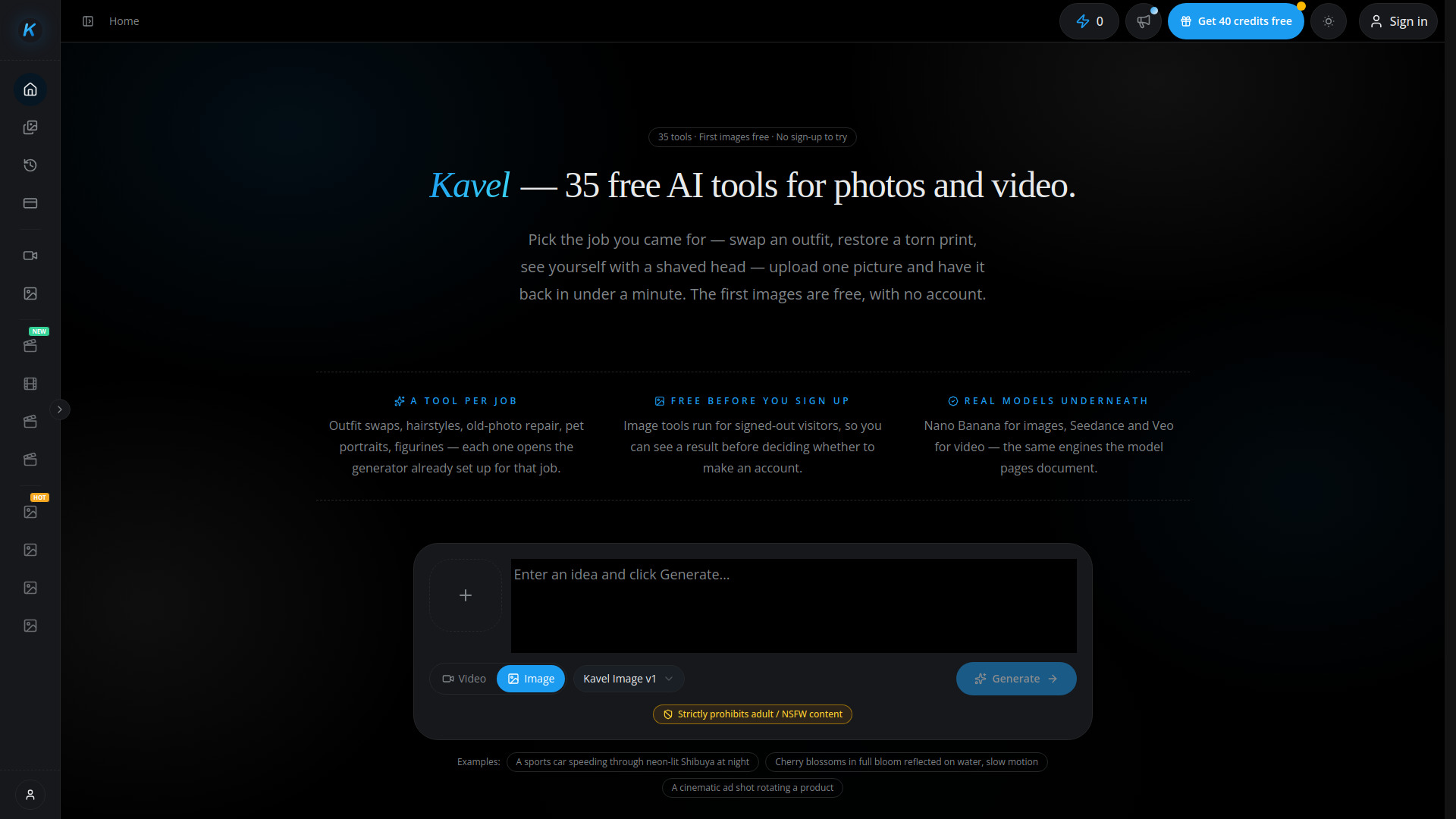
Kavel ai is built around a menu of ready-made actions rather than a blank creative canvas. With 35 AI photo and video tools, free image trials for some workflows, and a single shared credit pool with cost previews before generation, it gives creators a straightforward way to test several visual directions. That predictability is useful for quick app marketing experiments. You can see the likely credit cost before committing, though video generation can consume credits quickly and the tool is not intended as a full vector production environment.
Best for
Content creators who need many one-click photo and video treatments.
App marketers testing visual concepts without learning a large editor.
Users who value a visible credit estimate before generation.
Limitations
Video generation can use a substantial amount of the shared credit pool.
Adult and NSFW content is prohibited.
Ready-made AI tools do not provide the same path control as a dedicated vector application.
Shortlist signal: Use kavel ai for fast visual experiments when breadth and convenience matter more than manual vector control.
5. AppLaunchFlow

- Indie developers
- Free 1 project; screenshot export is preview-only
- Starts at Free: €0 /mo
- Usage signal: 48.3K
Why it matters
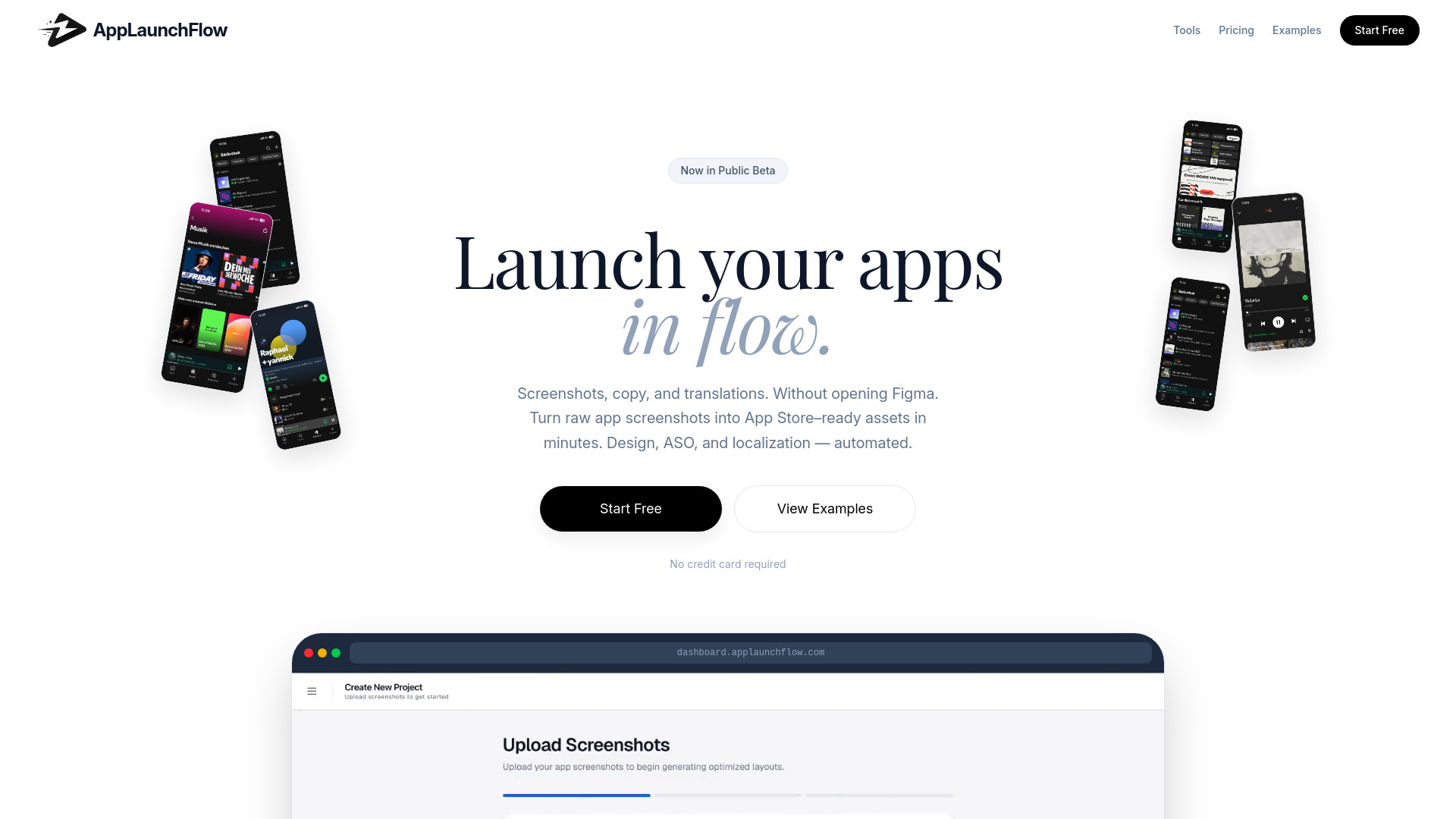
AppLaunchFlow earns its place by solving an adjacent problem that app developers regularly underestimate: turning a working product into a coherent store listing. It creates mobile and tablet screenshots, generates and optimizes ASO copy, and localizes content into more than 20 major languages. No Figma experience is required, which lowers the barrier for indie developers who need launch assets but do not want to build a complete design workflow. It is not a vector editor, but it can be more valuable than one when the immediate deliverable is a store-ready app page.
Best for
Indie developers preparing App Store or mobile-store screenshots.
Small teams that need ASO copy and translations in the same workflow.
Founders without dedicated design resources or Figma experience.
Limitations
The free plan limits screenshot export to preview only.
The Starter plan limits the number of illustrations and languages.
It focuses on store assets rather than general vector illustration or path editing.
Shortlist signal: Choose AppLaunchFlow when launch production, localization, and store presentation are the real bottlenecks.
6. TopoAI
- Network engineers
- 5,000 free credits
- Starts at Free: $0 per month
- Usage signal: 309
Why it matters
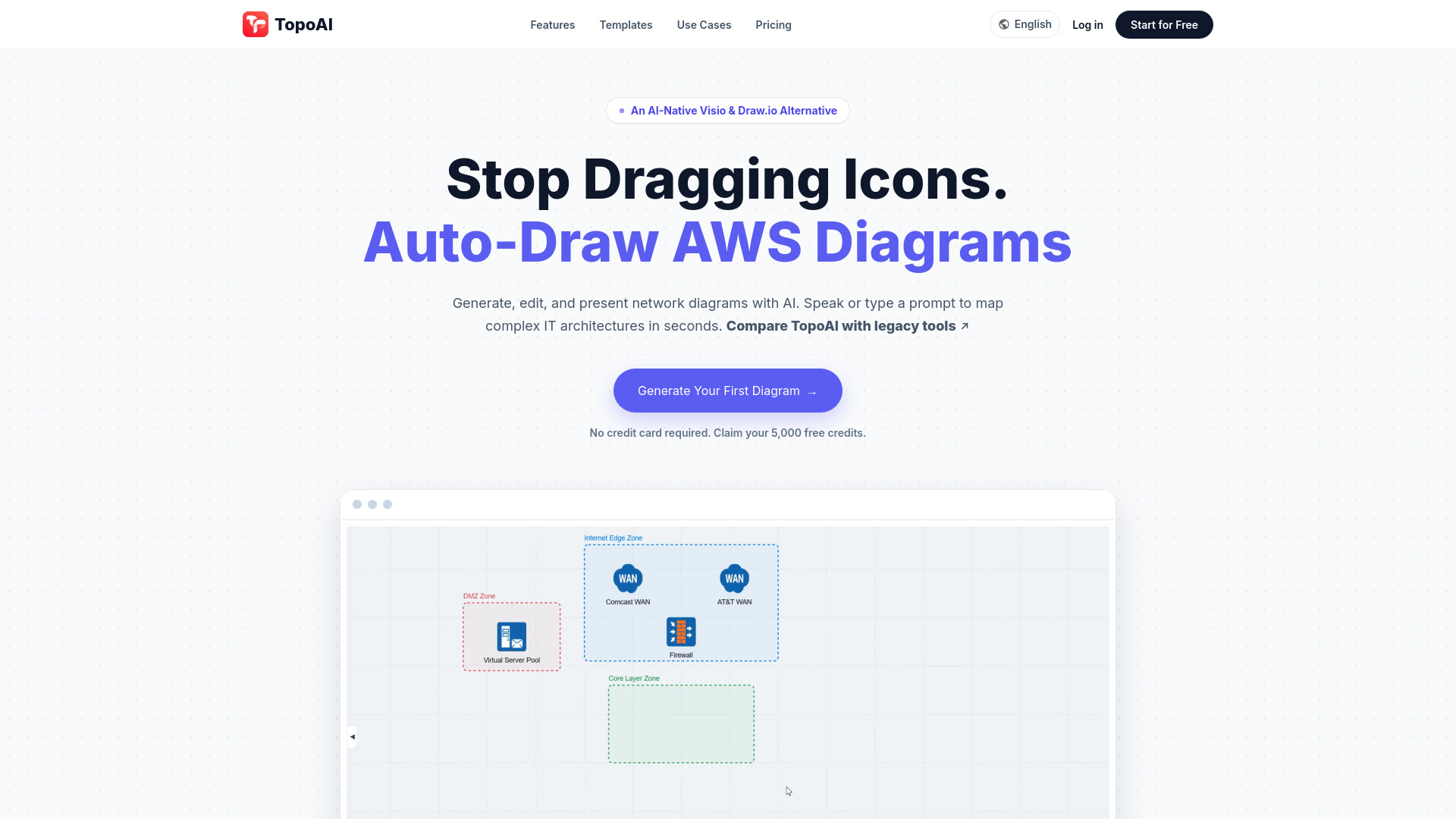
TopoAI is the most specialized alternative in the ranking. It generates editable network, cloud, and security topology diagrams from natural-language requirements and images, then supports conversational editing through text or voice prompts. Automatic layout and traffic-path routing reduce the tedious icon-dragging and connector work that makes technical diagrams slow to maintain. For developers building infrastructure documentation or architecture proposals, that is a meaningful vector-like workflow-even though the output is topology rather than illustration.
Best for
Network engineers drafting cloud, security, and infrastructure diagrams.
Teams that need editable topology drafts rather than static images.
Users who want to revise layouts through conversational prompts.
Limitations
AI-generated diagrams require engineering review before delivery.
Users are instructed not to upload real IP addresses, credentials, customer names, private screenshots, or configuration details.
Its narrow technical focus makes it a poor fit for brand graphics or app illustrations.
Shortlist signal: Add TopoAI only when your vector-style deliverable is an infrastructure diagram with technical relationships.
7. SVG Converter

- Graphic designers
- AI vectorization and SVG generation; no sign-up
- Starts at Check vendor pricing
- Usage signal: Usage signal not listed
Why it matters
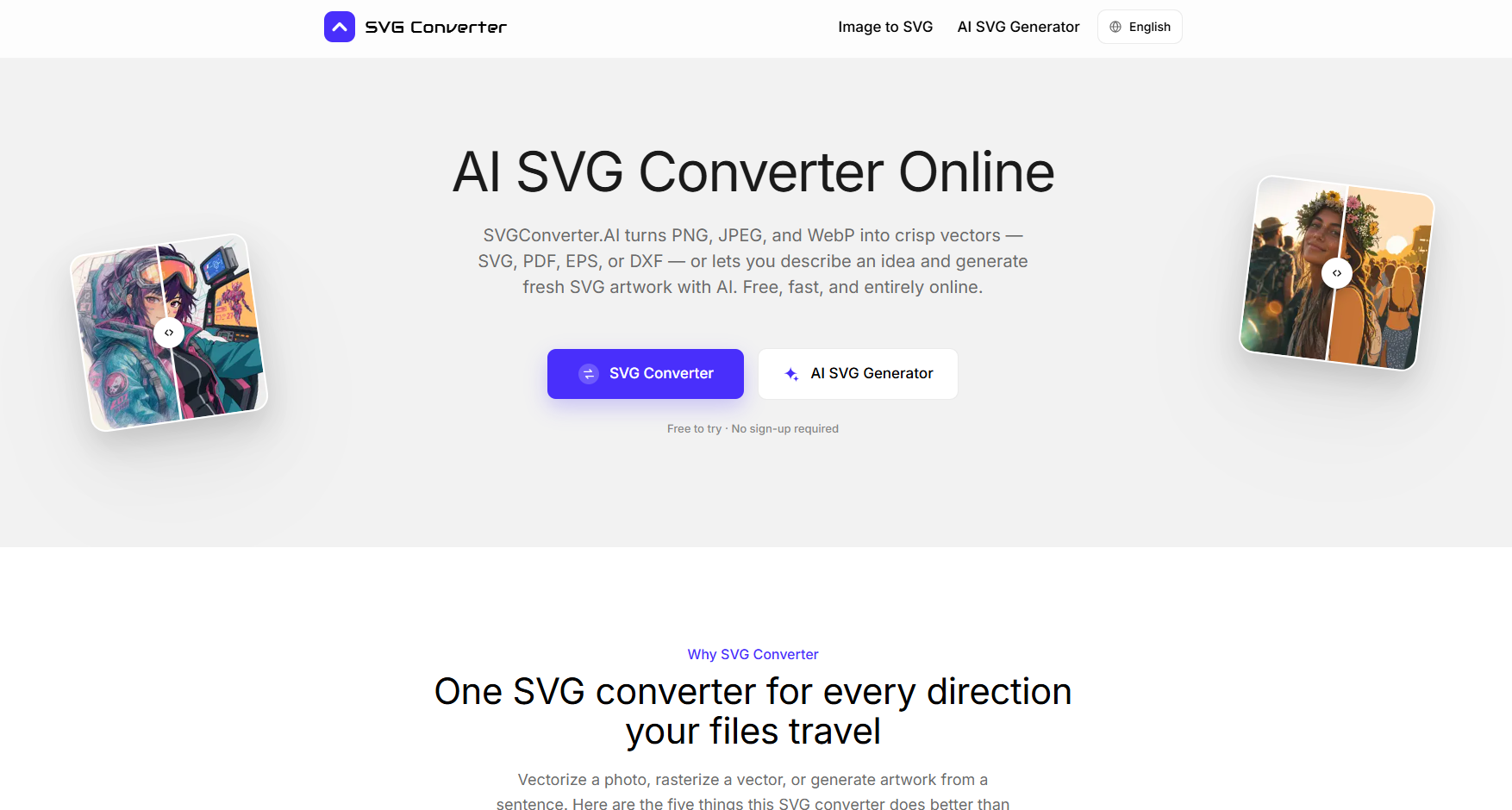
SVG Converter is the most direct fit for the vector-specific part of this comparison. It converts PNG, JPG, and WebP images into SVG, PDF, EPS, or DXF vectors, and it can convert those vector formats back into raster outputs such as PNG, JPG, WebP, AVIF, or GIF. The AI layer also generates layered, editable SVG artwork from text prompts. That combination makes it useful for icons, rough logo concepts, and production assets that begin as raster references. The catch is that quality can vary with the source image and prompt, especially on complex artwork.
Best for
Designers converting raster references into common vector formats.
Users generating layered SVG artwork from text prompts.
Teams that want to try vectorization without signing up first.
Limitations
AI artwork and vectorization quality can vary with the prompt or source image.
Detailed limits and performance specifications for large or complex files are not provided.
Pricing needs to be confirmed with the vendor.
Shortlist signal: Make SVG Converter your first test when editable SVG output-not general image generation-is the non-negotiable requirement.
8. Image 2.5

- Graphic designers
- 100 free credits; reference-led editing up to 4K
- Starts at Starter: $16.58 per month
- Usage signal: Usage signal not listed
Why it matters
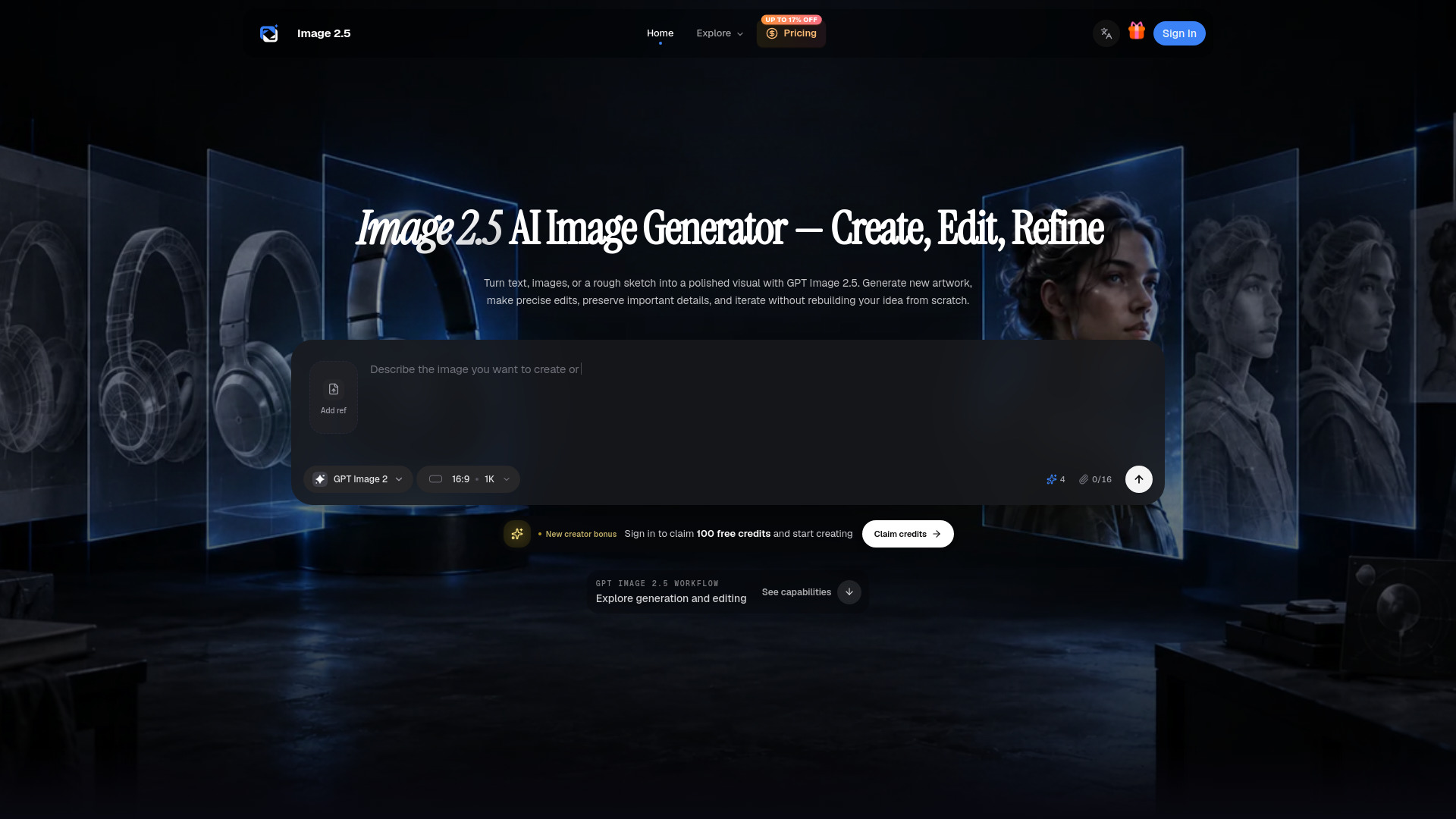
Image 2.5 is aimed at controlled visual iteration rather than one-off prompting. It supports text-to-image generation, reference images, masks, custom image sizes up to 4K, and multiple quality and export options. That makes it useful for refining product visuals, characters, and campaign concepts while preserving important details between revisions. It remains an image generator and editor, so you will still need another tool for clean vector paths, but the reference-led workflow can reduce the amount of manual correction before an asset enters a vector or layout stage.
Best for
Designers refining product or character visuals through references and masks.
Teams that need custom sizes and high-resolution image exports.
Users who want 100 free credits to test the editing workflow.
Limitations
Complex prompts can take up to two minutes to process.
Text, hands, materials, layouts, and identity details still require review.
It does not offer the direct vector conversion focus of SVG Converter.
Shortlist signal: Test Image 2.5 when preserving visual details across several image revisions matters more than native SVG editing.
9. NovaFlick AI

- Busy Moms
- Free usage
- Starts at Check vendor pricing
- Usage signal: Usage signal not listed
Why it matters
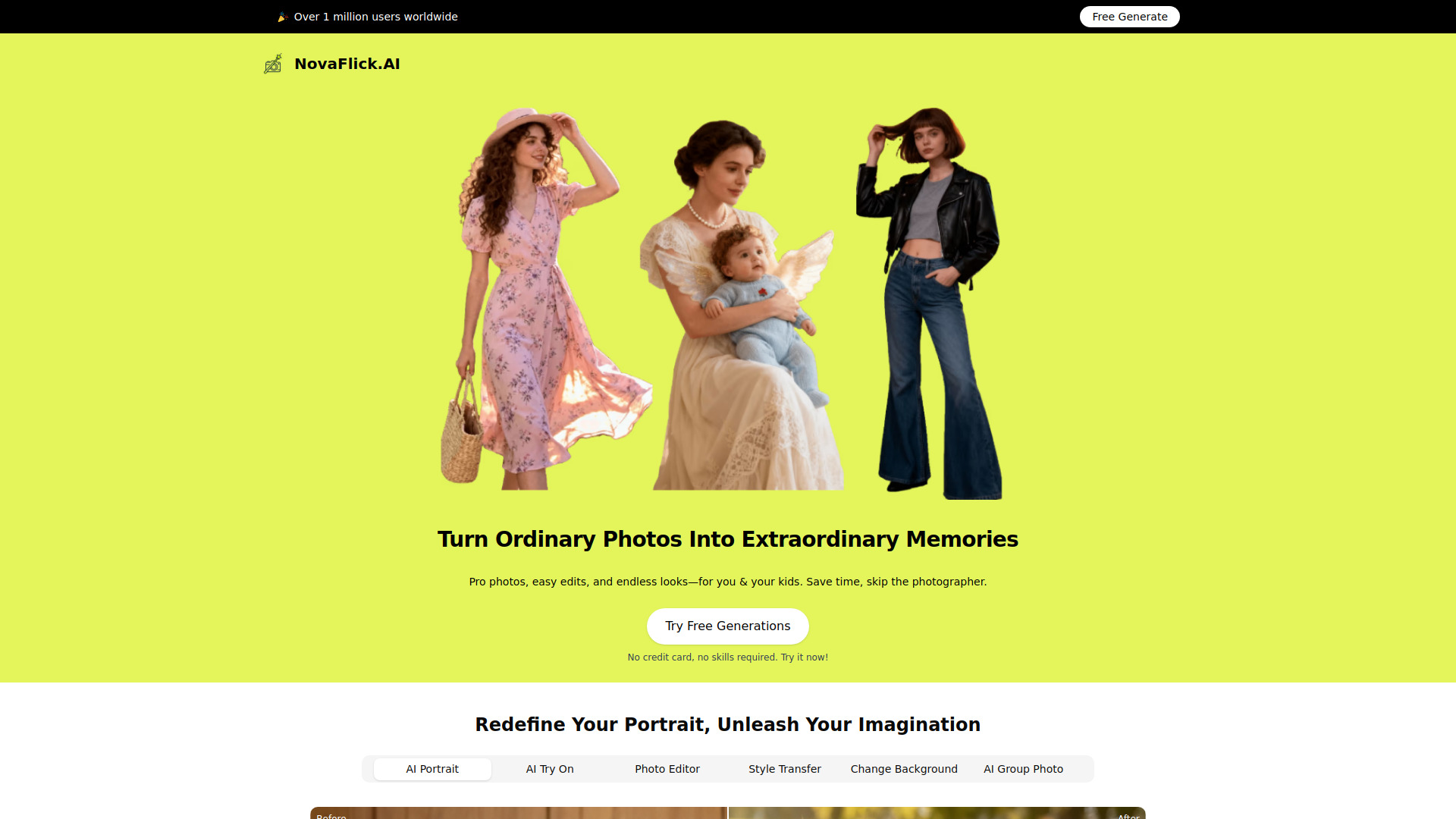
NovaFlick AI takes the least technical route into visual editing. Its one-click photo tools cover blur repair, background removal, spot removal, image generation, and portrait enhancement. For a developer or small marketing team, that simplicity can be useful when the task is to clean up a supporting image quickly rather than construct a carefully art-directed vector asset. It ranks ninth because its straightforward photo workflow is accessible, but the available details do not establish the kind of file-format and path control expected from a dedicated vector tool.
Best for
Busy users who need quick one-click photo improvements.
Small teams producing simple portraits or promotional visuals.
Beginners who do not want to learn a complex editing interface.
Limitations
Confirm current product fit, pricing, and workflow limits before committing.
Its listed strengths center on photo editing and generation rather than vector output.
Pricing details should be checked directly with the vendor.
Shortlist signal: Use NovaFlick AI for fast image cleanup, not as your primary vector-editing environment.
What to test before choosing
Run the same small test pack through the finalists. A meaningful evaluation should include a flat logo, a detailed illustration, a screenshot containing text, and one asset that needs a transparent background. For each tool, check the following:
Editability: Does the export contain usable paths, layers, or editable objects, or is it simply a flattened image?
Format coverage: Confirm whether you can export the exact format your app, design, or documentation workflow requires.
Fine detail: Inspect small text, sharp corners, holes, curves, and overlapping shapes at high zoom.
Repeatability: Run a second variation from the same reference and see whether the visual style remains consistent.
Credit economics: Record how many credits a typical generation or conversion consumes, especially for video or high-resolution output.
Commercial terms: Collart AI explicitly restricts free-plan content from commercial use; verify equivalent terms elsewhere before shipping assets.
Privacy: TopoAI specifically warns against uploading sensitive infrastructure details. Apply the same caution to any cloud tool.
Export gates: AppLaunchFlow's free project is preview-only for screenshot export, so test the actual download path rather than judging the editor alone.
For vector work, the preview is not the product. The exported SVG or other file is what enters your code repository, design handoff, print workflow, or store-asset pipeline.
What to do next
Start with one representative deliverable and a fixed acceptance checklist. If you need a logo converted to editable paths, compare SVG Converter with ArtCraft. If you need a launch package, test AppLaunchFlow against your actual screenshots and language list. If your project involves infrastructure documentation, use TopoAI with fictional or sanitized data and have an engineer review every generated connection.
Keep the first trial narrow. One successful image does not prove that a tool handles complex files, repeated revisions, or commercial production. Measure export quality, time saved, credit consumption, and the amount of cleanup required. The best choice is usually the tool that removes the most manual work from your specific bottleneck-not the one with the most impressive demo gallery.
Common mistakes when choosing from a complex top list
Treating every AI visual tool as a vector editor: Image generation, raster editing, SVG conversion, and path manipulation are different jobs.
Ranking by preview quality alone: A polished preview can hide flattened output, rough paths, or unusable text.
Ignoring the surrounding workflow: AppLaunchFlow may save more launch time than a drawing tool if screenshots and localization are your actual deliverables.
Overlooking early-stage software: ArtCraft's open-source model is attractive, but several applications remain in development or early alpha.
Forgetting commercial-use restrictions: Free credits are not automatically suitable for paid client or app-store work.
Underestimating credit usage: Video and advanced generation can consume credits much faster than a simple test image.
Uploading sensitive material: Never assume an AI diagram or image service is appropriate for private product, customer, or infrastructure data.
Skipping the export test: Always download a representative asset and open it in the next tool in your workflow.
FAQ
SVG Converter is the most direct match because it converts raster images into SVG, PDF, EPS, or DXF and can generate layered, editable SVG artwork from text prompts. ArtCraft is the stronger choice when you need a broader native creative workspace around the vector task.